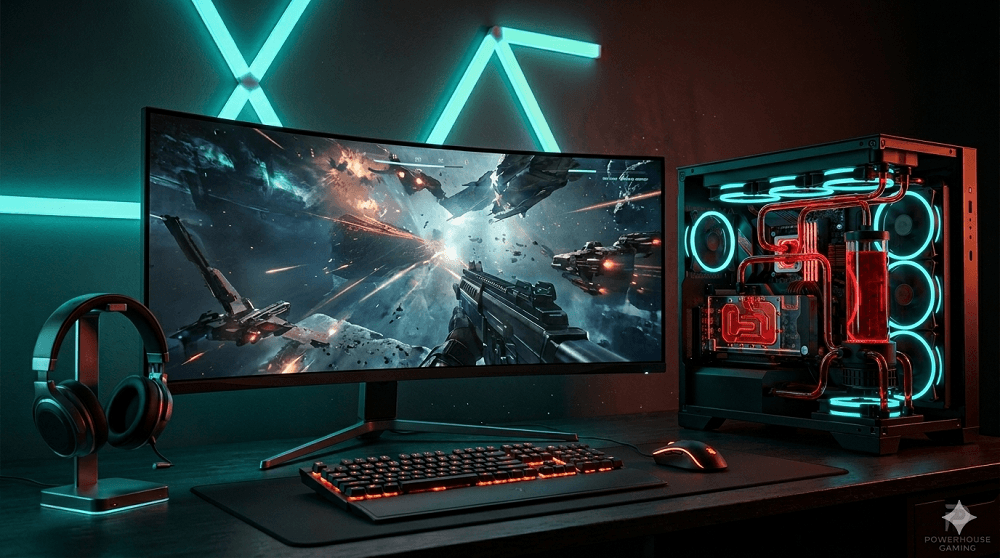
Your PC is probably better than you think. Most gamers blame their hardware when games run slow or feel laggy. But the real problem is usually bad settings or too many apps running at the same time. This guide shows you how to improve gaming performance on PC step by step. Most of these fixes are free and take just a few minutes to do.
Understanding What Affects PC Gaming Performance
The performance of your game will depend on a handful of important factors that have to work together within your computer. If one factor is not strong enough or configured properly, all other factors slow down. Being aware of the problem will save time and money when trying to solve it.
CPU vs GPU: Which One Is Holding You Back?
The graphics card renders all of your graphical display. The CPU does everything that occurs behind the scenes, including all of the game's logic and the behavior of the enemies within it. When one of the two is significantly weaker than the other, you have a bottleneck, resulting in low frame rates. This is a quick test you can do to pinpoint your problem. Set all of the graphic settings and resolutions in your game to the lowest possible settings. If your frame rate increases dramatically, your graphics card is your weak point.
How RAM and Storage Impact Your Game Speed
RAM keeps your game running smoothly while you play. In 2026, 16GB is the minimum you need for gaming. If you play newer big games, 32GB is the smarter choice. Storage affects how fast your games load and how smooth things feel when a new area opens up. If you are still on an old hard drive, switching to an SSD is one of the best moves you can make. Load times drop fast, the game world opens up quicker, and that annoying freeze you get mid-game almost completely goes away.
Software Settings That Boost Performance Instantly
These fixes do not cost anything. They take just a few minutes to change and most gamers feel the difference right away in their next gaming session.
Windows Settings Every Gamer Should Change
High Performance Power Plan: Open Control Panel, go to Power Options, and select High Performance or Ultimate Performance. This stops Windows from slowing down your CPU when it thinks you do not need full power.
Close Background Apps: Open Task Manager and shut down any apps you are not using. Web browsers, music apps, and background update services all use up RAM and CPU power that your game could be using instead.
Enable Game Mode: Go into Windows Settings and turn on Game Mode. It tells Windows to give your game priority over everything else running on your PC.
In-Game Graphics Settings Explained Simply
Not every graphics setting is worth keeping on high. Some use a huge amount of power but make almost no visible difference to how the game looks. Turn off motion blur and film grain first. They make the screen look blurry and do not help you play better at all. After that, lower shadows and ambient occlusion from ultra down to medium. You will get a big jump in FPS and the game will still look really good. Also turn off V-Sync unless you are dealing with screen tearing. V-Sync slows down your inputs and makes controls feel less sharp. These are the best PC settings for gaming when you want smooth performance without sacrificing too much visually.
Best Free Tools to Optimize Your PC for Gaming
MSI Afterburner lets you watch your GPU and CPU temps in real time and safely push a little more performance out of your graphics card.
GPU-Z and CPU-Z give you detailed info about your hardware so you can spot any issues quickly.
Driver Booster keeps your drivers up to date automatically, which can give you a free FPS improvement in a lot of games.
Hardware Upgrades That Make the Biggest Difference
If you have gone through all the free fixes and still need more performance, it is time to look at upgrading your hardware. These are the changes that give you the best improvement for the money you spend. If you are also thinking about building from scratch, check out our guide on choosing the right gaming setup before you buy anything.
When to Upgrade Your GPU
Your GPU is the most important part for gaming performance. If you are playing on the lowest settings and still getting bad frame rates, or if your card is more than four years old, upgrading makes a lot of sense. Before you buy a new GPU, check that your CPU can keep up with it. If it cannot, you will still have a bottleneck, just in a different place. A GPU upgrade for gaming gives you better FPS, smoother gameplay, and the ability to run newer games at higher settings.
Is More RAM Always Better for Gaming?
Not always. Going from 8GB to 16GB makes a big difference and is worth doing right away if you have not already. Going from 16GB to 32GB helps when you play large open world games that are known to need more memory. Going past 32GB will not improve your FPS at all for most games right now. One more thing to check is whether your RAM is running at the right speed. Go into your BIOS and turn on XMP or EXPO. A lot of PCs ship with RAM running slower than it should be. Turning this on takes two minutes and costs nothing.
SSD Upgrade: How Much Does It Really Help?
An SSD will not directly raise your FPS but it makes gaming feel a lot better overall. Load times go from minutes down to seconds. Mid-game stutters from slow data loading drop a lot. If you are on an old hard drive, any SSD is a huge upgrade. If you already have a regular SATA SSD and are thinking about going NVMe, the gaming difference is honestly pretty small. You will save a few seconds on load screens at most. NVMe is still the right buy in 2026 since the prices are nearly the same, but do not expect a dramatic change if you already have a working SSD.
Internet and Network Optimization for Online Gaming
Your PC can be running perfectly and online games can still feel terrible. If that is the case for you, your internet connection is most likely the problem.
How to Reduce Ping and Improve Connection Stability
The fastest fix you can make is switching from WiFi to a wired ethernet cable. WiFi can show fast speeds on a test but it adds small random delays that hurt online gaming. A wired connection is stable and almost always gives you lower ping. If running a cable is not possible, a powerline adapter is a solid backup option. Also check which server your game is connecting to. A lot of games connect you to a far away server by default. Switching to the closest server can cut your ping by a lot. When it comes to how to reduce lag in games, fixing your connection is always the first step to take.
Router Settings That Help Online Gaming Performance
Log into your router and look for Quality of Service, also written as QoS. This lets you tell your router to send your gaming data out first before anything else on your home network. Set your gaming PC as the top priority device on the list. If your router has a 5GHz WiFi band, make sure you are connected to that one. It is faster and less crowded than the 2.4GHz band most devices use. Also check if there is a firmware update available for your router. Outdated router firmware can cause random ping spikes during your games that are hard to figure out otherwise.
Final Thoughts on Boosting Your Gaming Performance
You do not need to buy a brand new PC to game at a higher level. Start with the free fixes in this guide first. Change your power plan, turn off heavy graphics settings, and close everything running in the background. Use free tools to check your temps and keep your drivers fresh. Sort out your internet connection if online games feel slow and laggy.
Only think about spending money on hardware after you have worked through all of that. Most gamers see a real improvement before they spend a single dollar. When you are ready to push things even further, make sure you have the right gaming accessories to match your improved setup. Try the free fixes today. Your very next gaming session will already feel better.